
LUA is a dynamic, reflective, imperative and procedural programming language used as a general-purpose scripting language.
Lua was created in 1993 by Roberto Ierusalimschy, Luiz Henrique de Figueiredo and Waldemar Celes, members of Tecgraf/PUC-Rio, the Computer Graphics Technology Group at the Pontifical Catholic University of Rio de Janeiro, Brazil. Versions of Lua before 5.0 were released under a license similar to the zlib license. Since version 5.0, Lua has been released under the MIT license. In an article published in Dr. Dobb’s Journal, Lua’s creators stated that Lisp and Scheme, with their typical data structure, the list, were the main influence on the decision to adopt the table as Lua’s primary data structure. Lua has been used in many applications, both commercial and non-commercial. (Lua, n.d.)
Language features
Lua’s main features are functions treated as first-class “objects” that can be assigned to variables, and the use of tables as generic data structures.
These features let the language implement characteristics found in object-oriented languages without being one itself. (Lua, n.d.)
Lua and Nios4
Lua was chosen as the scripting language for Nios4 mainly because it is available on all the platform’s devices, so these subprograms can be distributed and run on all the supported operating systems.
These subprograms (scripts from now on) are run automatically by Nios4 at key points of its operation, such as before and after saving. Other scripts can be actual commands that the user can run.
Scripts can be linked to a data table or to the program. Scripts linked to data fall into two categories: those run when the data is shown in the form, and those handled inside an editing grid.
Nios4’s Lua functions and objects were designed to be available on all devices, although responses and behavior may differ depending on the operating system.
For example, reading GPS points works on iOS and Android, while on the other systems a pair of zeros is always returned.
Another difference concerns saving files: iOS devices handle files differently from the others.
We therefore recommend testing your scripts on all devices to avoid any malfunctions.
Creating a script
To create a new script or edit an existing one, open the dedicated page in the Options section. Remember that you need database administrator permissions to manage scripts.
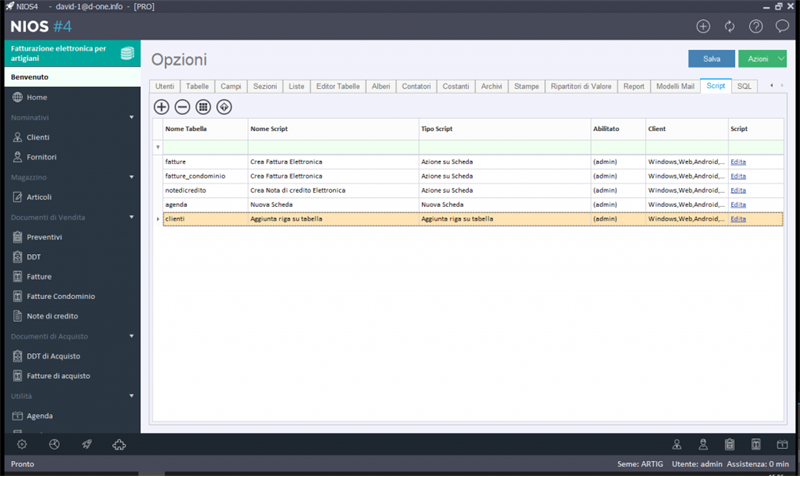
Table Name
The name of the table linked to the script. If the name is **NIOS4, the script is used directly by the program.

Script Name
The name of the script.

Script Type
The type of script, which identifies the event that runs it.

Enabled
The permission category allowed to run the script.

Client
The type of device that can load and run the script.

Script
The link that opens the editor.
Clicking Add and choosing the scope shows all the possible execution points.
Depending on the type selected, the program may ask which table the script should be linked to.
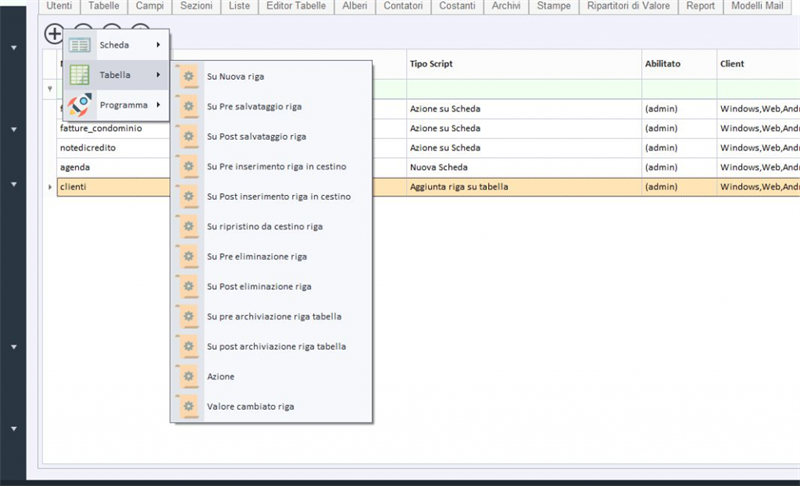
Remember that you can link several scripts to the same event of the same table; they are run in the order they currently have in the grid.
Once you’ve set who can use the script and from which device, click the Edit link to open the script editor itself.
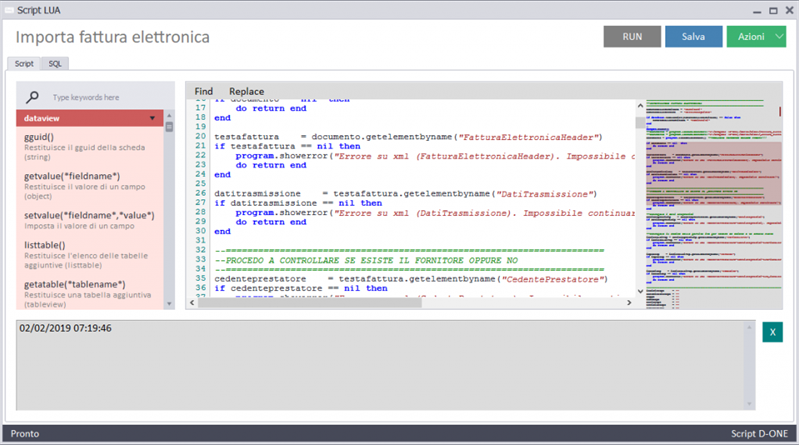
The editing window is divided into 4 sections: on the left is the navigation bar with the functions you can use in the subprogram, with a search box above it for filtering.
To insert a function, place the cursor in the text editor and click the item you want. Values enclosed in asterisks mark the parts of the function to replace with a real value.
In the center is the script editor itself, and on the right a zoomed view of the code.
At the bottom is the output console, where you can see the script’s data while it runs.
Remember to always save after making changes, to update the script.