
The View section lets you display data from several tables at once. To be linked, the tables must share a subtable field that joins them. At the moment this section can only be used in the Windows and Web versions.
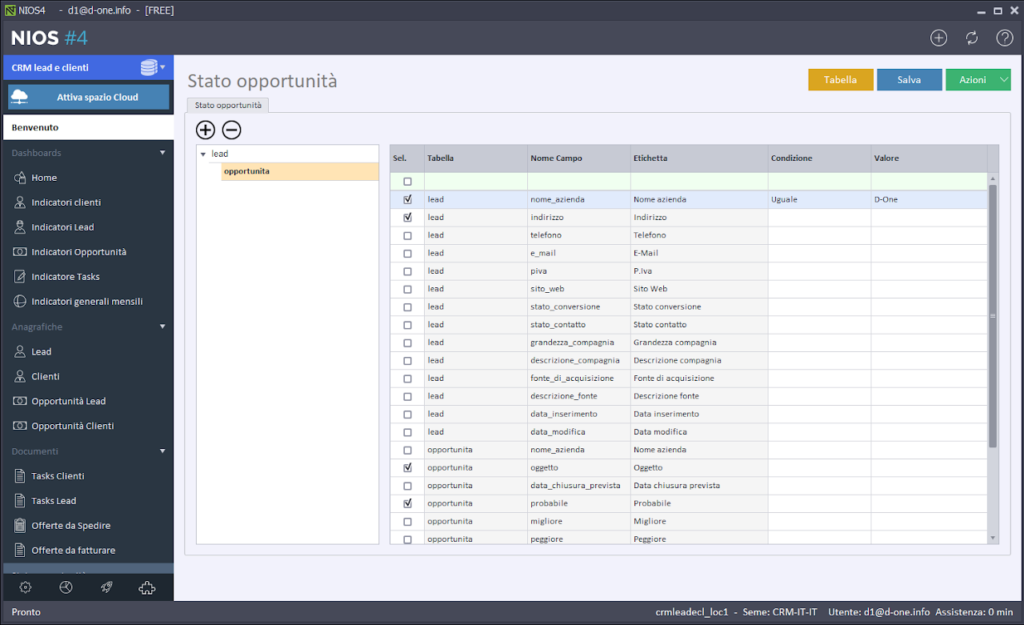
The section doesn’t need a defined table. In fact, you can create several views in the section, from several tables.
Creating a view
When the section is created and selected, if no view has been set it automatically switches to edit mode. With the plus and minus buttons you can include tables. In the first selection you can choose from all the available tables. After the first table, the next selections only allow tables that have a subtable field linked to the parent table.
Once the tables are selected, in the table on the right you can choose the columns to show and, for each one, apply a condition and its value to filter the data if needed. When the view is set, click Save. Clicking Table exits edit mode and shows the view as it has been set.
Actions commands
The Actions button contains the functions for renaming the view, creating a new one, deleting it, or duplicating the one currently being edited.
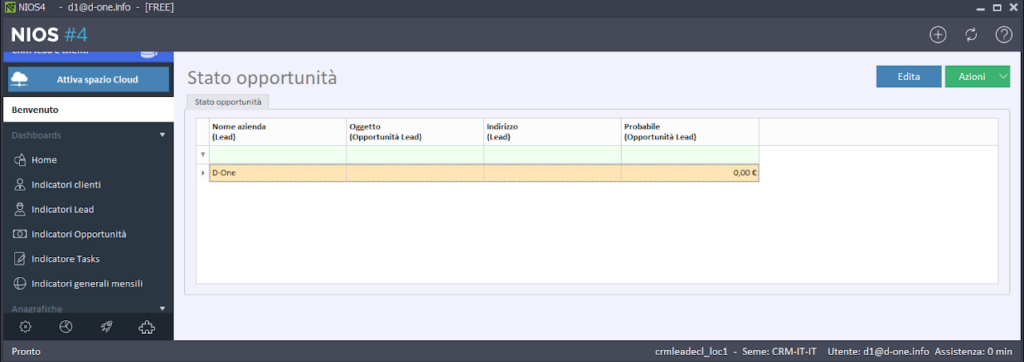
In view mode, double-clicking a record lets you edit the values shown through a dedicated form that combines the values of the tables displayed. This form cannot be linked to scripts.
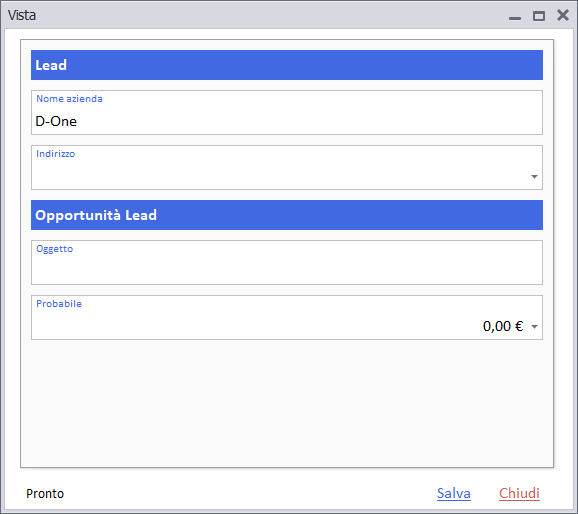
Non-editable values are shown but locked.