
The Nios4 Daemon is a service program for Windows systems. It was created to run data import and export operations on a Nios4 database automatically and on a schedule. For it to work properly, we recommend adding the program to those launched automatically when the computer starts. Below are the links to download the full version and the update, if it is already installed:
Installation
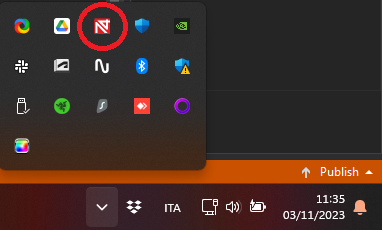
After installing and launching the program, the screen with the currently active scripts is displayed. If there are scripts, the window is hidden automatically. To reopen it, click the program’s icon in the Windows taskbar.
Interface and commands
The center of the screen lists the scripts currently loaded in the daemon. From the table you can set whether these scripts are active or paused. From the same table you can enter the start date the system uses to calculate the next run, the time scale to use for the calculation (minutes, hours, days) and the numeric value to use. Based on these values, the program shows in the last column the actual date of the script’s next run.
When the program runs the script, the start date becomes the current date and the next date is updated with the new value.
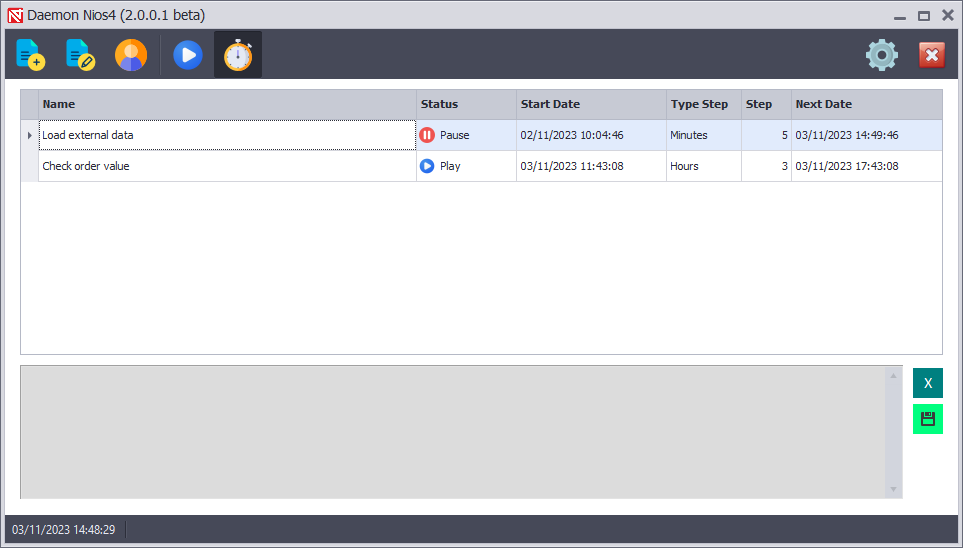
The lower part contains the script log console. Here the program displays the messages sent by the scripts, such as confirmations or errors caught by the system.
Top bar commands
New Script
Creates or imports the scripts to run.

Edit Scripts
Opens the editor for the script currently selected in the main grid.

Accounts
Manages the Nios4 accounts used to identify the cloud databases.

Run
Runs the script currently selected in the main grid.

Timer
Shows whether the program's timer is active or not.

Options
Shows the program options.

Close
Closes the program completely (if you only close the window, the program stays active and can be reopened from the taskbar).
Example: automatic data import from an external file
In this example we will create a script that imports data from an Excel file directly into a Nios4 database. This lets you automatically insert data coming from other management systems and send it to all devices through the cloud.
Registering the Nios4 account
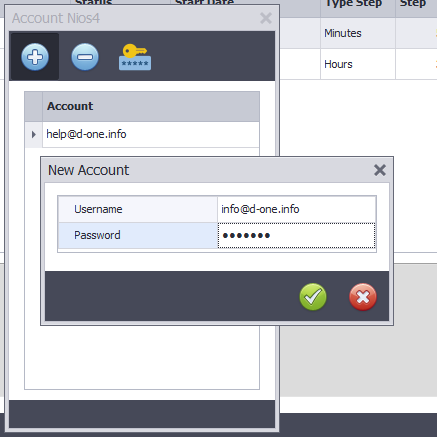
First you need to enter the Nios4 accounts in the program. They are used when the scripts run, to get authorization to interact with your cloud databases. Clicking the Accounts button opens the window with the accounts currently registered. Click the add button to enter a new one.
Creating the script
Click the New Script button to load the editor and start writing our script. The RUN button runs the script directly, while the Actions command shows the menu with the various editing functions. The Save button saves the script and refreshes the main grid.
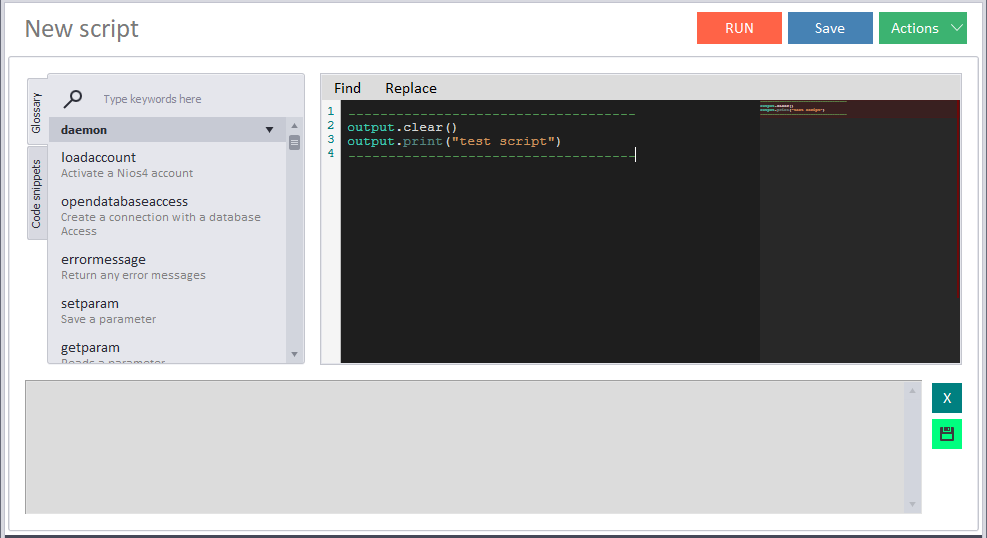
The editor is laid out exactly like the standard Nios4 editor. The left part lists the available commands, the central part is the editor itself, the right part shows the code preview and the lower part contains the console.
Now let’s write the first lines of the script:
account = daemon.loadaccount("help@d-one.info")
db = account.opendatabasecloud("testxls")
The first line creates an account object by specifying the user name. This in turn is used to open access to the database that will receive the imported data. The database name can be found on all devices. For example, in the Windows version it is shown at the bottom left.
tid = daemon.getparam("tidxls")
if tid == nil then
   tid = 0
end

db.tidserver = tid
value= db.sync()
daemon.setparam("tidxls",db.tidserver)

excel = program.loadspreadsheet("c:\\test.xls")
The first block of code retrieves the database’s tid value. This value identifies the time marker of the last synchronization performed. In this example we try to read this value from the program parameters. If the value doesn’t exist, it is set to 0. A tid equal to 0 means that during synchronization the server is asked to send all the data in the cloud.
This value is usually used only for the first synchronization, since sending or receiving all the data on every run performs poorly. Nios4 manages this value on its own, while with the daemon we have to save it ourselves, in a file or in the parameters.
If this value is valid (the date is in YYYYMMDDhhmmss format), the server is asked to send the data changes made after this date, so that the device receives only the operations its database is actually missing. Once the value has been retrieved or set, we set the database’s tidserver variable.
After synchronization, the database updates the tidserver value. This is then saved in the program parameters so that it can be retrieved the next time the script runs, and synchronization covers only the latest changes.
The last line opens the Excel file and turns it into a DataTable object. This means you can browse it like any table in the program. Editing and saving are not possible. The column names correspond to the column letters of the Excel file.
Now we load the values from the file, checking whether we need to create a new record or update an existing one:
rows  = excel.getrows()

for i = 1,excel.countrows() do
    row = rows[i]
    ritem = nil

    --search items

    table_items = db.getsql("SELECT * FROM items WHERE code='" .. row.getvalue("A") .. "'")

    if table_items.countrows() > 0 then
       rows_items = table_items.getrows()
       ritem      = rows_items[1]
    else
       ritem = table_items.adddatarow()
    end

    ritem.setvalue("code",row.getvalue("A"))
    ritem.setvalue("description",row.getvalue("B"))
    ritem.setvalue("price",row.getvalue("C"))
    ritem.setvalue("tid",utility.tid())
    ritem.save()

end
First, a for loop iterates over all the valid rows in the Excel file. For each row, the database is queried to see whether a record matches the value in the first column. If the record doesn’t exist, a new datarow is created; otherwise the record found is used. This way the system handles both adding new records and updating existing ones. Of course you can add other checks to decide whether the record found needs updating. In fact, the drawback of this approach is that it systematically updates all the records found, even when the values haven’t actually changed.
After updating the data, we repeat the same synchronization steps, retrieving the tid value used to send only the changes or additions made since the last synchronization.
tid = daemon.getparam("tidxls")
db.tidserver = tid
value= db.sync()

if value == false then
   output.print(db.errormessage)
end

daemon.setparam("tidxls",db.tidserver)
After this second synchronization, the database updates the tidserver value again, so it can be saved again for the next time.
If synchronization fails (value = false), you can read the error through the database’s errormessage variable.
Once the script has been created, you can rename and export it from the Actions menu.
Creating the task
After saving the script and closing the editor, you can set its run timer by entering the start date, the time scale and the numeric value used to calculate the next run.
Differences between the Daemon’s LUA objects and Nios4’s
Since the Daemon was designed to be independent of the full program, it lacks several management objects. For example, you can’t view and edit data using the standard forms, or generate print layouts. Its functions are limited to bulk data management working directly on the database. On the other hand, it has commands for loading external files that are not available in Nios4.
See also: Connecting to other management systems