
Databases are the files that physically contain the data entered by users. Databases also store all the information about their own structure and the rules for how they work and are displayed.
Nios4 lets you manage an unlimited number of databases with the same program. Each operating system uses a specific database format: Windows uses MS Access and MS SQL Server, Android and iOS use SQLite, and the Web uses MySQL. So you can’t move a database from one platform to another without using the data synchronization system.
You can manipulate the data in the database file directly with other tools, but this is not recommended unless you have programming knowledge: you could change the data so much that the program no longer works correctly. The benefit is that you can connect other programs to the same database, letting them read and write directly in it.
Data structure in the database file
Nios4 handles the management and editing of the data in a database. All the tools and functions are there to let users easily manage processes that would otherwise be complicated.
Knowing how this data is actually stored in the database file makes it possible to connect directly to the data outside Nios4.
Each database contains the tables that hold the data. Each table contains data classified by its name: the customers table contains the customers, the items table naturally contains the items. These tables belong to the user: they are the data tables the user creates and manages through the Nios4 functions.
Tables whose name starts with so_ and lo_ all belong to the program, and they store the information needed for the database to work correctly. These tables are for the program’s exclusive use, and changing their data will almost certainly cause the whole system to malfunction. Deleting a table or field without using Nios4’s own functions will certainly cause it to malfunction.
Relationships between tables
As a data management model, Nios4 is inspired by NoSQL: it doesn’t use the relational mechanisms typical of databases.
Relationships between tables are handled by the program using a specific type of field that links the table keys in a parent-child model. Thanks to this essentially flat approach, data can be moved from one type of database to another relatively easily.
Remember that, since the data is not linked relationally, it is copied from one table to another. For example, if you select the customer in an invoice, the field automatically fills in the name, address and so on. If the address is later changed in the customer’s record, it won’t be updated in the invoice, which keeps the previous one. To update this value you need to open the invoice and force the update. If you need to update all invoices, you’ll have to use a script or an SQL string.
Base fields
Every table in the database has a set of base fields that the system needs to work correctly.
These fields are present both in the program’s tables and in the user’s tables. When a new table is created, the program automatically creates these fields as well.
GGUID
The alphanumeric field that acts as the record index. It guarantees there are no duplicates in the system. It is generated automatically when a new record is created. No two identical values can exist in the whole database.

TID
The date of the last modification, in YYYYMMDDhhmmss format.

ELI
Indicates whether the record is in the recycle bin (0 = no, 1 = yes).

ARC
Indicates the index of the archive applied to the record. If the value is 0, the record is not in any archive.

UT
The name of the user who last modified the record.

UTA
Contains the global IDs of the users who can see the record on their devices.

EXP
Contains any calculation expressions used in the record.

GGUIDP
If filled in, identifies the GGUID linking to a parent record.

TAP
Identifies the table containing the parent record, if any.

IND
Identifies the row index of the record. It can have several functions; first of all it is used for sorting in data grids.

UTC
Identifies the name of the user who created the record.

TIDC
Identifies the record's creation date.

DSP,DSC
DSQ1,DSQ2
Additional management fields used by the program.
Creating a cloud database
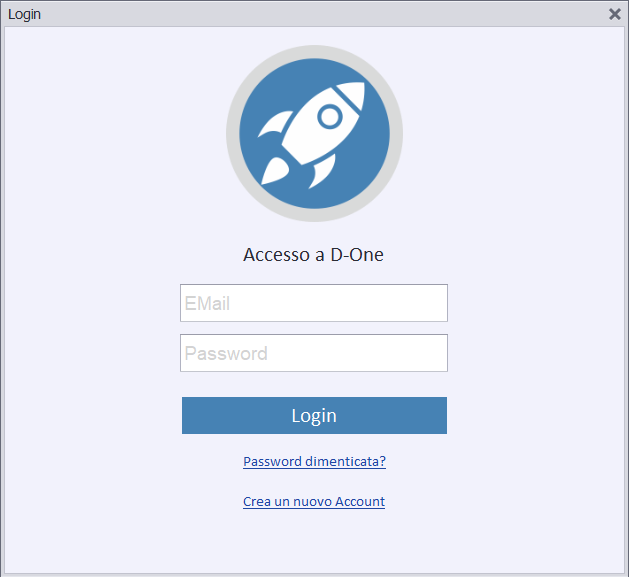
To create a cloud database, open the quick navigation menu and select New Cloud Database. If no D-One account has been connected, the program asks for the credentials to continue.
If you don’t have an account, you can create one from the window. You’ll need an email address, used as the name, and a password.
The next step is choosing the database to create, its name and the subscription type. Besides the three cloud sizes, which vary by the amount of data that can be managed, you can activate a free 30-day trial.
Once the subscription expires you can still access the data locally and on all the devices synchronized up to that point, but you won’t be able to synchronize any more data.
Creating a local database
To create a local database, open the quick navigation menu and select New local database.
You can create a new database, connect an existing one by giving the path to the file, or set up an advanced connection. The latter lets you connect to an SQL Server database.
After selecting New local database, the program asks which type to create:
– The first option creates a completely empty database.
– Current database creates an exact copy of the database in use at that moment.
– Online templates let you choose the database from the types currently available online.
– Load database template lets you create it from a data file.
Once the type is selected, the program creates the database.
Managing databases
Databases are managed from the dedicated page in the Options section.
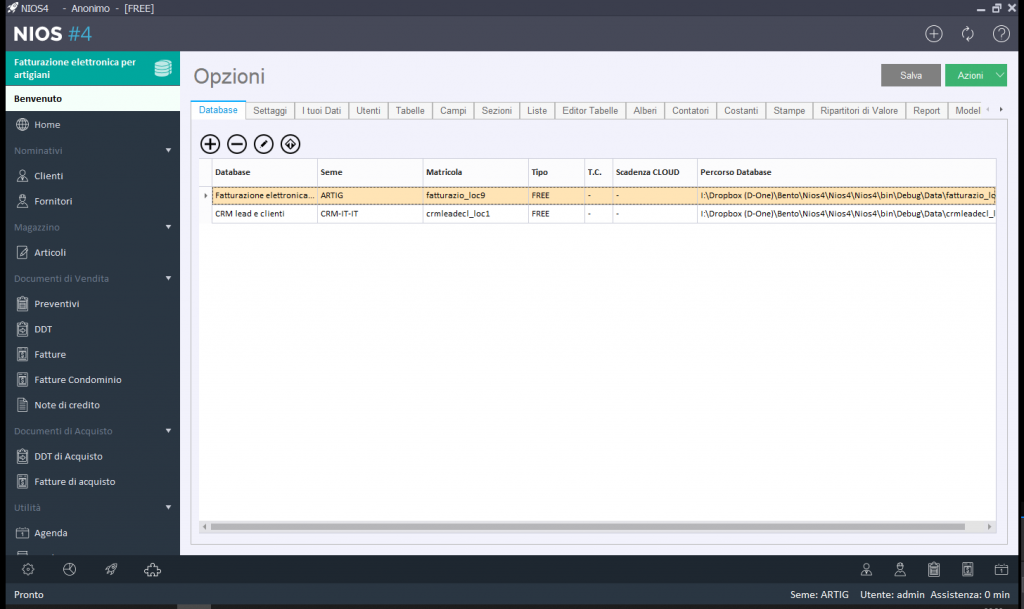
Database
The name of the database.

Seed
The seed, i.e. the type of database. The seed is used to prevent installing data packages created by databases with other seeds.

Serial number
The unique code of the database.

Type
Identifies the type of license applied to the database.

T.C.
The subscription type, if the database is a cloud database.

CLOUD expiry
The subscription expiry date, if the database is a cloud database.

Database path
The path of the physical database file. This path only applies to Access databases.
Exporting a database
You can create an export file of the database, which can contain both the structure and the data.
You can also create a template file to share with other users, containing the database structure and only the data of the tables selected by the user. A template created this way can be used in white labels and in the template reseller network.
To create the file, use the dedicated button and select the type of export you want.
Remember that the available exports create files that can only be used in Nios4 software.