
Tables are sets of values arranged in a grid where the columns are the fields and the rows are the data.
The number of columns is always known, while the number of rows (data records) varies according to the data entered by users.
A table cannot have two columns with the same name, and there cannot be two tables with the same name in the same database. Nios4 also restricts the choice of names, to avoid creating tables that would conflict with the correct operation of the system.
Tables are the foundation of the program: the users’ data and the program settings are all stored in them.
The role and any hierarchy of the data are decided by the user according to their needs. For example, the customers table will be shown in a section to make it accessible, while any additional tables will only be visible by opening a specific form.
Tables are managed in the Options section, on the Tables page.
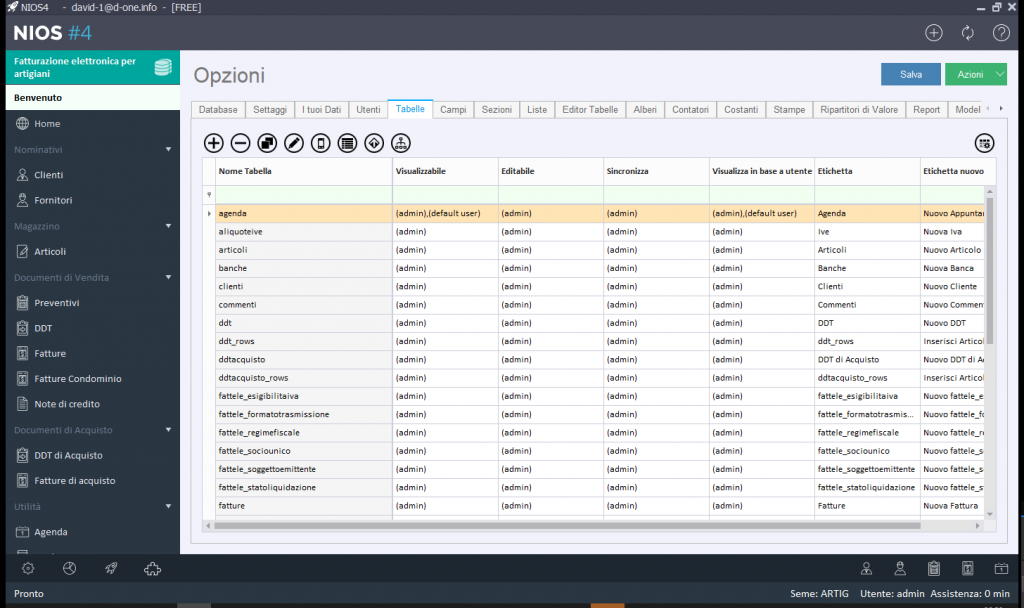
In the grid you can quickly view and change the permissions and labels of the tables. To confirm the changes, remember to save with the button at the top right.
Table name
The unique name of the table.
Viewable
Whether a user can see the data in the table.
Editable
Whether a user can modify the data in the table.
Synchronize
Tells the server that it must receive the table and send it to all devices.
View by user
Tells the program that the data will be synchronized with the server, but users will only see the records explicitly assigned to them through the selection list in the data form.
Label
The table label.
New label
The table label used when creating a new data form.
When you change the view and edit permissions, all the fields of the table inherit the new settings. To set the permissions of a single field, work on it from its management page.
Adding a table
To add a new table, click Add and enter the name you want to give it. The program checks that the name is valid and that no other table with the same name exists.
After creation, the program automatically opens the screen for adding fields. Remember that a table can exist without any fields defined, although it isn’t of any use that way.
Deleting the records in a table
How to delete all the data in a table WITHOUT deleting the table.
Deleting a table
To delete a table, select it in the grid and click Delete.
Before proceeding, the program checks whether the table is used elsewhere. If it is used by other tables or fields, it cannot be deleted. You first need to make sure the table isn’t referenced by other objects of the management software.
Duplicating a table
To duplicate a table, and therefore all its fields, click Duplicate Table.
The program asks for the new name and, if it is valid, performs the duplication. If there is a table with the same source name plus the suffix “_rows”, Nios4 asks whether you also want to copy that one.
Exporting a table
Exporting a table creates a package that can be installed in another database.
When you select Export, the program asks where to save the package and what type of export to perform. You can export, together with the chosen table, all the objects linked to it, so that it works correctly once installed in the destination database.
Once created, the package can only be installed on other databases with the same seed.
Diagrams
You can also view the tables and their relationships as a diagram.
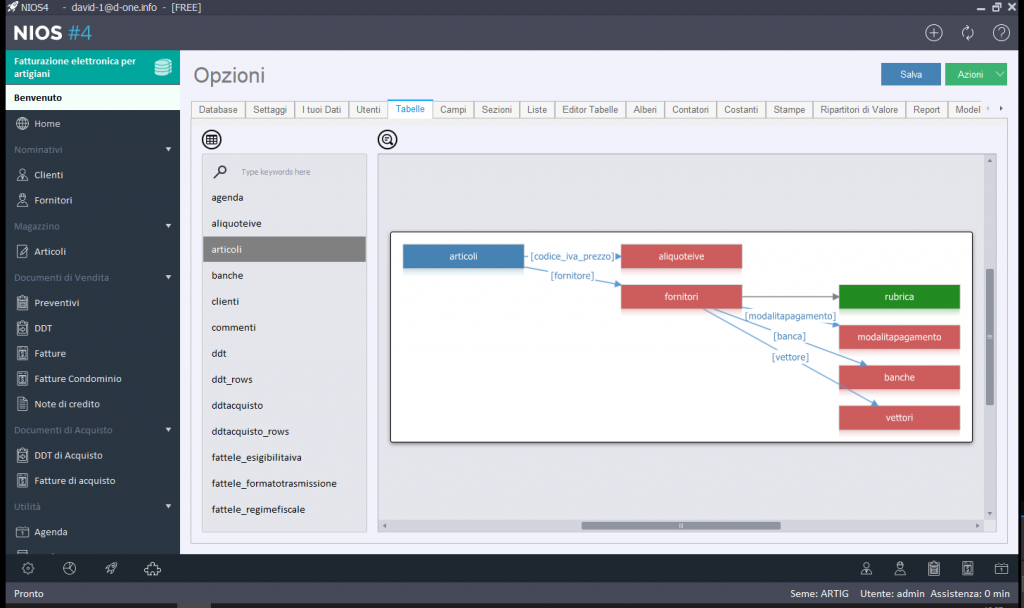
The blue box shows the currently selected table. The green boxes are the additional tables, while the red ones are the tables linked through the Subtable field (the name in square brackets).
Clicking the various elements shows their settings.
In this section: Table layouts · Table parameters