
In this chapter we’ll add some calculations that our order will perform automatically. The goal is to calculate the price based on the quantity of each item entered, and the order total.
First we need to create the fields that will hold the calculated values in the various tables. An important rule to remember is that every calculation must have a field to store its result: this lets you check every single step calculated by the program.
- Create a Currency field named “Price” in the Items table.
- Create a Decimal number field named “Qty” in the orders_rows table: it will hold the quantity of the item to order.
- Create a Currency field named “Price” in the orders_rows table.
- Create a Currency field named “Total price” in the orders_rows table.
Once the fields are done, you should see something like this:
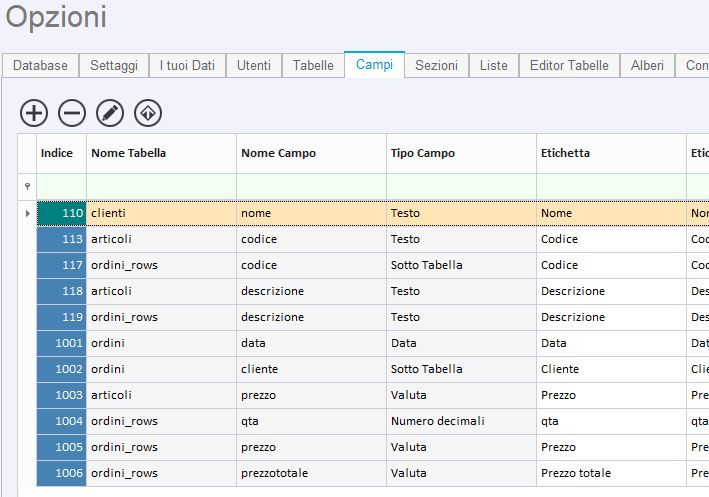
Now let’s change the code field of the orders_rows table so that the price is also filled in when we choose an item. Double-click the field and set up the mappings, adding the price.
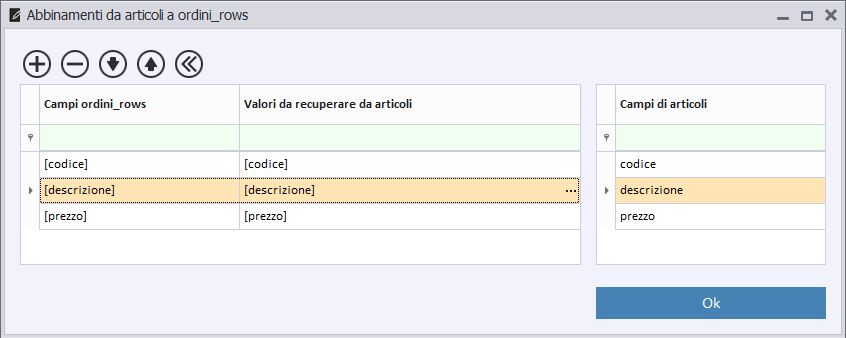
Once the mappings are set, click Ok and save the changes to the field.
With the fields created, we can add our calculations. Since calculations are tied to tables, we need to change orders_rows first and then Orders.
Go to the Tables page, double-click orders_rows and click Set next to the Calculation expressions parameter.
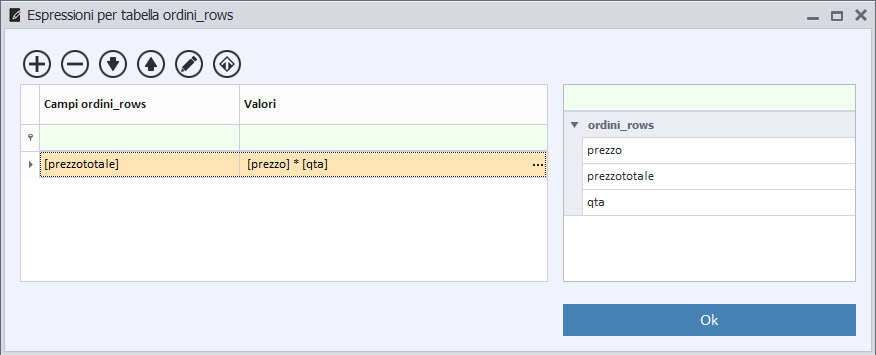
Add a new row and, in the left column, select the Total price field, which will hold the result, while in the central column (Values) write [price] * [qty]. It’s important to write it exactly like this, because the square brackets tell the program that these are fields, so it must retrieve their current value before performing the operation.
Click Ok, save and try creating a new order right away.
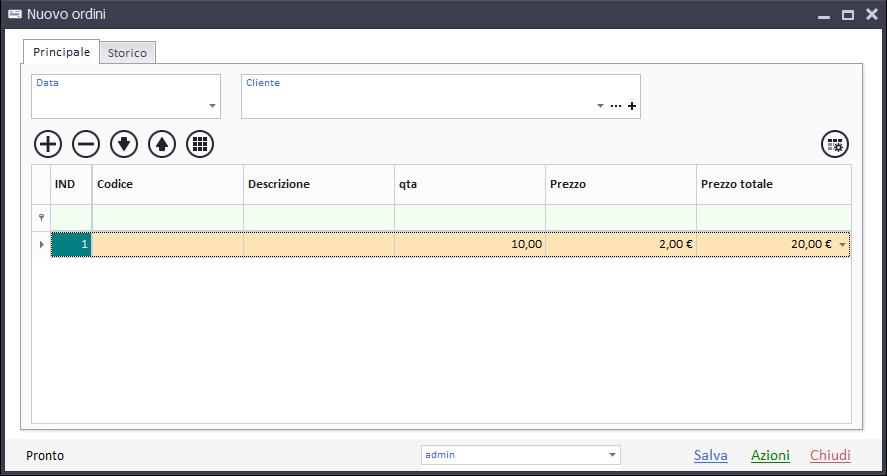
You can see the new fields we created in orders_rows.
Add a row and enter values in Qty and Price to see the Total price calculated automatically. You can also type a value into Total price, since the field is editable, but it will change automatically as soon as one of the fields used in the expression changes.
Remember that expressions run in the order in which they were entered, and they are all recalculated as soon as a field they use changes.
Now let’s add the Total price field to the order in another way: directly from the layout editor.
Open the default layout of the Orders table, open the Actions menu, select Create field and finally select Lower right detail.
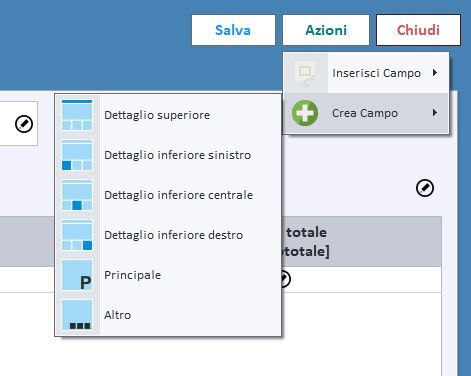
Then create a Currency field named Total price. Save the field, save the layout and close.
Now let’s add the calculation to the Orders table. As you can see, the panel on the right lists the fields of both orders and orders_rows, because calculations can use values from additional tables.
Add the row and select the Total price field in the left column, then click the Total price item of orders_rows in the panel on the right.
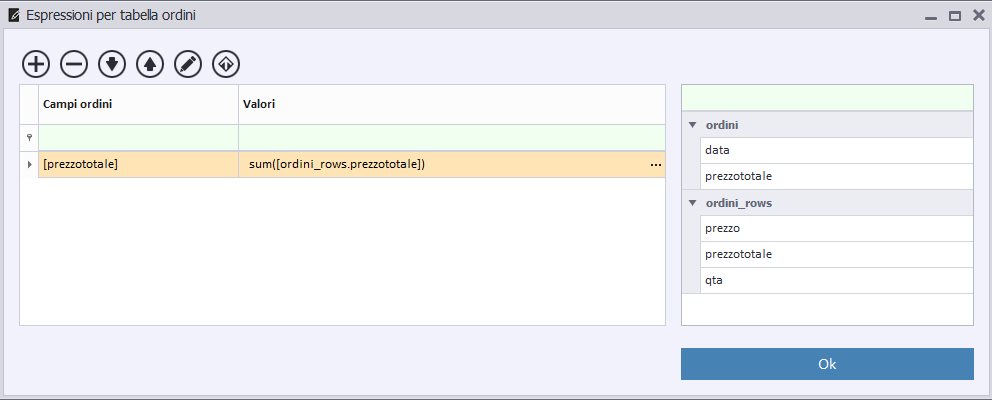
The expression has a special format: it tells the program to retrieve the sum of the Total price field. In fact, you can’t retrieve the value of a specific row from an additional table; in this case you can only get the sum of the column.
If you need the value of a specific row, you’ll have to add a LUA script that performs the calculation.
As always, click Ok, save and try our order.
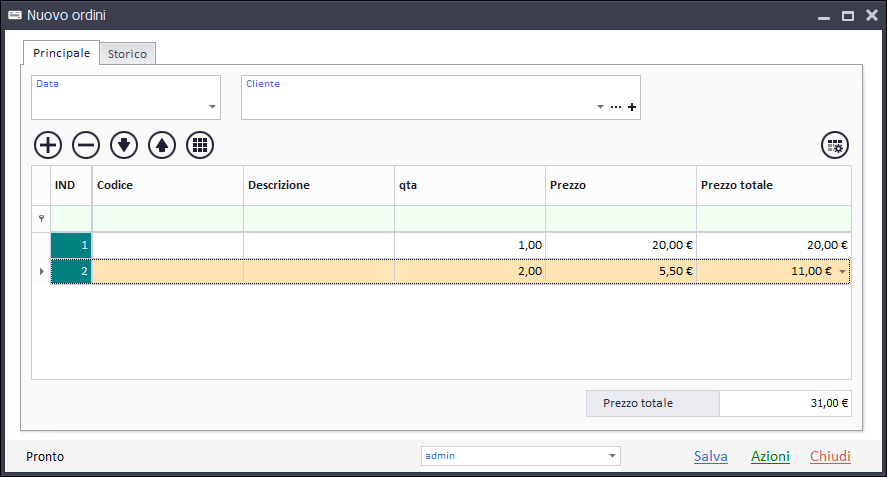
From now on, as you add rows and enter values in the Quantity and Price columns, you’ll see the order’s Total price recalculated each time.