
Besides creating automations to process the data in a cloud database automatically, the Nios4 Daemon also gives other management systems direct access to this data. This is because the program doesn’t work on the data in the cloud: it first downloads it into a local database, processes it and then sends the changes back to the cloud, so that the web server distributes them to all the devices connected to that database.
First steps
- First, install the program on the computer where the data coming from the other management system will be read and written. This creates the access point to the local copy of the cloud database managed by the daemon.
- Register the Nios4 account that owns the cloud database you’re interested in, so that the script can access it when it runs. To do this, click the Accounts button to open the management window and click the add button to enter the data.
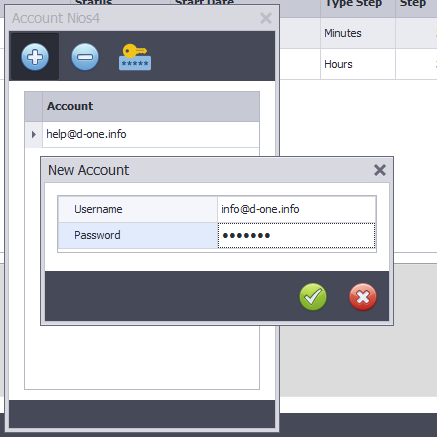
Finally, we’ll create a basic script that creates the database and keeps it synchronized with the cloud server. Click the New script button and enter the following text.
account = daemon.loadaccount("help@d-one.info")
db = account.opendatabasecloud("recipe")
tid = daemon.getparam("recipe")

if tid == nil then
   tid = 0
end

db.tidserver = tid
value= db.sync()
daemon.setparam("recipe",db.tidserver)
The script accesses the registered account and, through it, the database we’re interested in. It retrieves the time marker from the parameters, so that only the latest added or changed data is sent or received, and runs the synchronization. When it finishes, it retrieves the new marker and saves it in the parameters. If this script is scheduled, for example, every 10 minutes, the daemon will automatically repeat the synchronization at each chosen time interval.
The first time the script runs, if the daemon doesn’t find the local database it creates it automatically. By default the program uses the Microsoft Access format for the database. These databases are normally stored in the c:\Software_D-One\DaemonNios4\database folder, and the file name matches the name of the cloud database.
You can change the file path with the dedicated function in the program options.
Now that a local copy of the database has been created, you can access it with all the Microsoft tools that work with Access files (.mdb format), with full access to the tables and the data they contain. The following links explain how the program’s tables are structured and which rules to follow to synchronize data between the local database and the cloud database.