
Tables have several parameters for customizing various aspects and automating various processes.
To change them, select the table and click Parameters, or double-click its row.
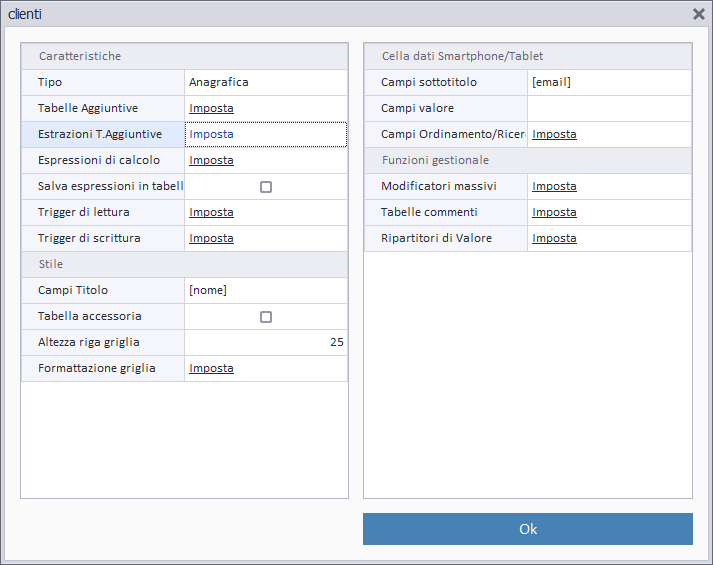
Type
Tells the program the category of data the table will manage.
Additional Tables
Additional tables are tables inserted as extra pages in the table’s form.
Calculation expressions
Calculation expressions tell the program which calculations to perform on the table.
Read triggers
Automations that run when one or more specific fields are modified.
Write triggers
They modify database data when the form is saved.
Title fields
Used to build the form description when it is saved.
Accessory table
Indicates that the table must be shown in the table editor in the Options.
Grid row height
Sets the row height in pixels used in the data grids.
Grid formatting
Changes the look of the grid cells based on conditions (Windows only).
Subtitle fields
A secondary descriptive line in the cells on mobile devices.
Value field
Defines which numeric field is shown in the cells on mobile devices.
Sort and Search Fields
Defines which fields the mobile version uses to sort lists and run searches.
Image Field
Lets you select an image field to show in the cells on mobile devices.
Style in additional table
Sets the display style, grid or cell, when the table is shown as an additional table.
Duplicable to
Defines the tables the form can be duplicated to.
Document Aggregator
Sets the rules for merging several documents into one.
Bulk modifiers
Sets numeric modifiers to apply to numeric fields.
Comments table
Sets the tables from which comments can be retrieved.
Value splitters
Automatically fill in an additional table with values taken from the form and split according to time and percentage criteria.
Reminders
Ticking this flag tells the program to enable reminders for this table.
Reminder Templates
Ready-made templates to use when creating a reminder.
Derived records
Sets up the table so that, when properly filled in, the record of another table is opened.
Barcode reading
Sets up and enables the barcode reader to fill in the table rows automatically.