
The Gallery section creates a visual catalog. It can also enable a shopping cart for managing B2B orders. At the moment this section is enabled for the Android, iOS and Web versions. In the Windows and macOS versions the section is shown as a standard record list, without the cart.
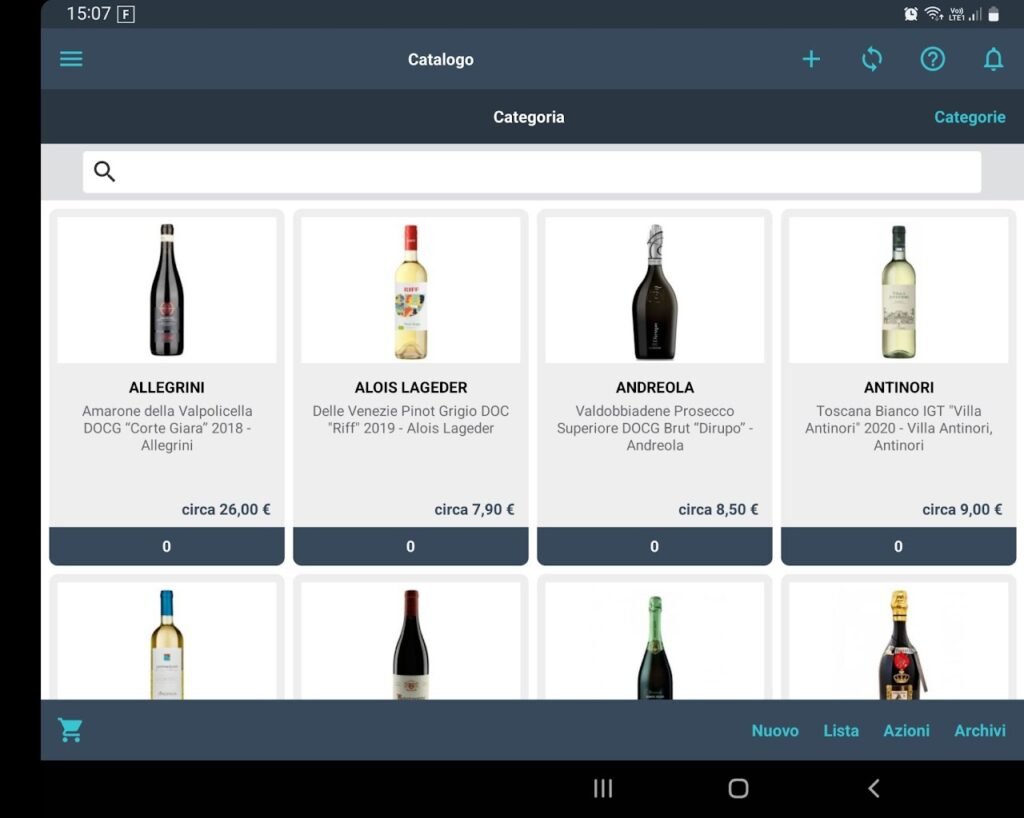
If the order management parameters aren’t filled in, the cart function and the ability to select the quantity by tapping the box are disabled.
Section Parameters
Subtotals
Date Field
Used for the first sum of a field's values.
Total Field
The field to sum.
Total Field Title
The label shown above the sum box.
SQL Filter
An optional SQL string to filter the sum of the values further.

Except for the first box, the other three boxes change according to the filter applied to the grid. All boxes need the field to sum, the title and the optional SQL string.
Parameters
SQL Filter
Filters the values shown in the section. For example "country = 'Italy'" shows only the records matching that criterion.
Status List
The "status list" field used to show a colored band on the record's cell.
Tree Choice
If the table has a tree field, you can select it here. The program shows it on the right of the grid so you can filter the data by the selected node.
Image Field
The field from which the image shown in the gallery is taken.
Main table
The table of the document created with the section's cart, for example the orders table.
Additional Table
The additional table of the main table where all the records selected in the cart are inserted, for example ordini_rows.
GGUID Field
The field in the additional table where the gguid of the records in the cart is inserted.
Quantity Field
The field in the additional table where the quantity of the record in the cart is inserted.
Quantity Step
The increment value used when selecting the record in the gallery.
Main mappings
Selects the field values taken from the section's table and written to the records of the additional table.
Secondary table
Sets a secondary selection after the primary one made in the gallery. For example, choosing size and color after choosing the item.
Secondary condition
The SQL condition used to filter the data shown in the secondary selection (for example, if the quantity is greater than zero).
Secondary Mappings
Selects the field values taken from the secondary table and written to the records of the additional table.
Script
You can create a script to manage the data passed from the cart to the additional table. This lets you perform advanced operations while filling it in. If a script is present, the standard cart management is disabled automatically. The script can access the cart directly through a datatable object named "carttable".