
This is the most common type of section. Its job is to show a grid with the data of the associated table.
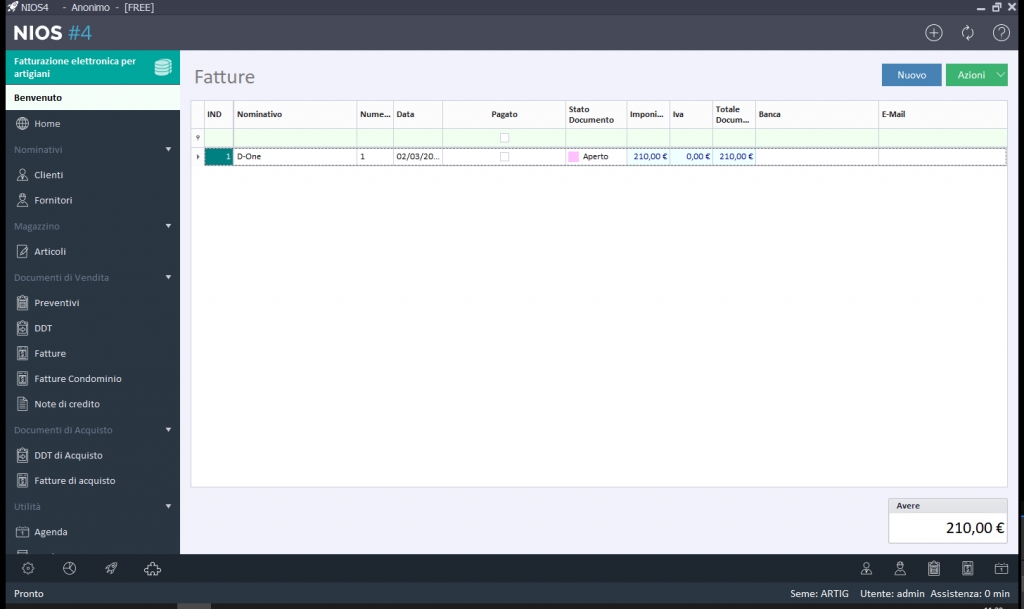
At the top right are the buttons for creating a new form and the Actions menu. This menu contains the table management commands, such as choosing which columns to show and their width. If the width is set to automatic, the columns are adjusted so they all fit in the grid. If instead the width is fixed, you may need to use the scroll bars to see the columns that don’t fit.
The Actions menu also lets you export the grid in various formats and print it.
At the bottom, depending on the configuration, there may be boxes showing the sum of a field for all the rows currently displayed.
Depending on the license purchased, you can view archived or deleted data. To open the archives menu, click the icon next to the section name in the main navigation bar.
Section Parameters
Subtotals
Date Field
Used for the first sum of a field's values.
Total Field
The field to sum.
Total Field Title
The label shown above the sum box.
SQL Filter
An optional SQL string to filter the sum of the values further.

Except for the first box, the other three boxes change according to the filter applied to the grid. All boxes need the field to sum, the title and the optional SQL string.
Parameters
Smartphone data cell
Sets the display style of the cell on smartphones and tablets. You can use the standard template or an image style. The image is taken from the field selected in the table settings.
Status List
Selects a "status list" field used in the cells of the iOS and Android mobile versions to show a marker in the color associated with the selected status.
SQL Filter
Filters the values shown in the section. For example "country = 'Italy'" shows only the records matching that criterion.
Tree Choice
If the table has a tree field, you can select it here. The program shows it on the right of the grid so you can filter the data by the selected node.