
Nios4 shows the data in the tables through forms, which display the table’s fields and let us create new data or change data saved earlier.
Forms also have several functions for working with this data, such as printing and duplicating. They can also be shown in two different styles, to organize and speed up data entry and management.
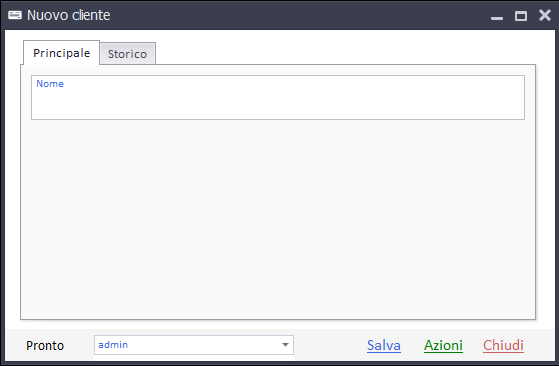
The first style, called Record, is the simplest: the fields are shown arranged in rows and split across several pages.
The second style, called Document, is used when you need to manage an additional table right on the first screen. Here too the fields are shown in rows and split across several pages, but only from the second page on.
The first page is divided into five specific areas: the top shows the fields we consider most important, the center holds a data grid, and at the bottom the fields are arranged in three columns.
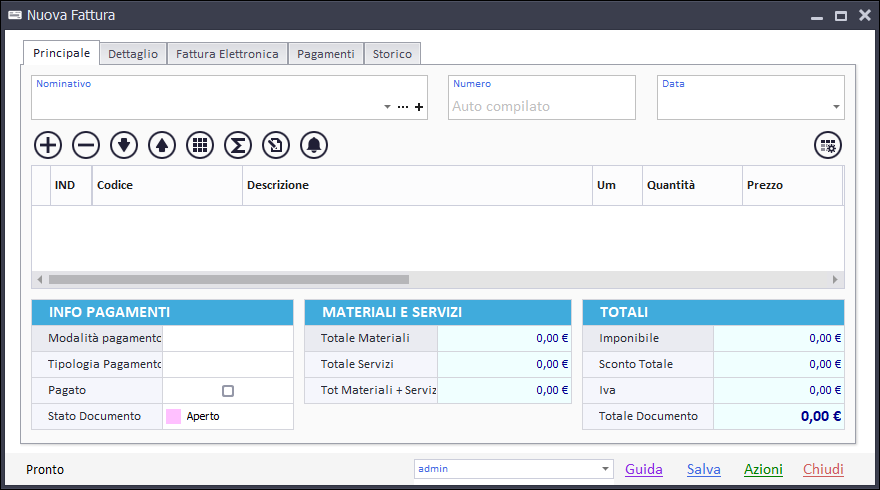
This display style is designed to keep all the main information on the first page and, above all, to make it easy to pull information from several tables.
In our case, in fact, the Orders table and section will be changed into a document that pulls data from customers and items.
Let’s open the Options and, on the Tables page, double-click the Orders row.
The first item is Type, and it is set to None. Open the list and select Document.
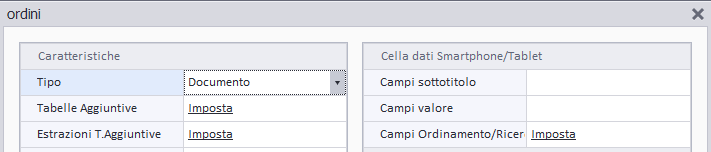
When we click Ok, the program tells us that the orders_rows table doesn’t exist and asks whether to create it. This table is the one shown in the central grid of the document, and it is required for this display type. In our example it will be used to enter the various items in our order.
Click Yes and then the Save button in the top right.
To see the result, just try creating a new order and look at the new form style.
In the next chapter we’ll start linking the tables together to fill in our order.