The field defines a button placed in the form. You can associate various types of operation with the button, run when it is pressed. As with the separator, no physical field is created in the database.
Buttons can also be created on dashboards, grouping several in the same widget.
Field Parameters
Image
Selects the icon shown in the button. The icons are the same ones available for sections.
Parameters
Opens the screen for associating the operations the button performs. A button can perform several actions, which run in the order set in the parameters.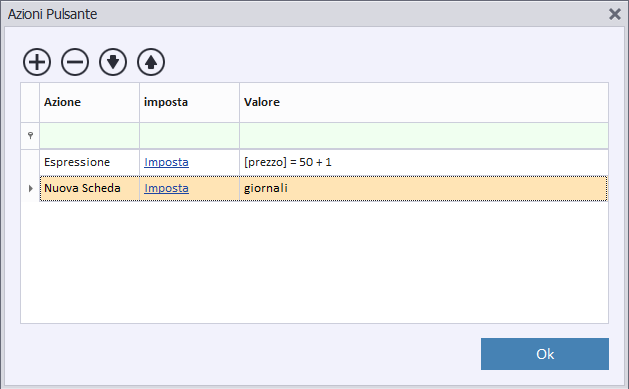
Once the type of action is set, click the Set link to enter or select the action’s settings.
Link
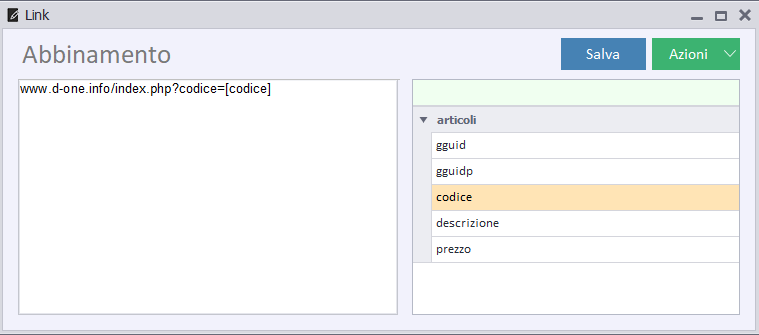
The Link action opens an internet address when the button is pressed. You can also include values of the current form, to pass parameters directly.
Script
You can associate a script to run when the button is pressed. The script must first be created in the options, in the scripts section, with type Button. It works exactly like “form action” scripts. Once set, the script can be edited directly from the script editor without associating it with the button again.
New Form
Opens a new form directly, based on the selected destination table.
Mapping
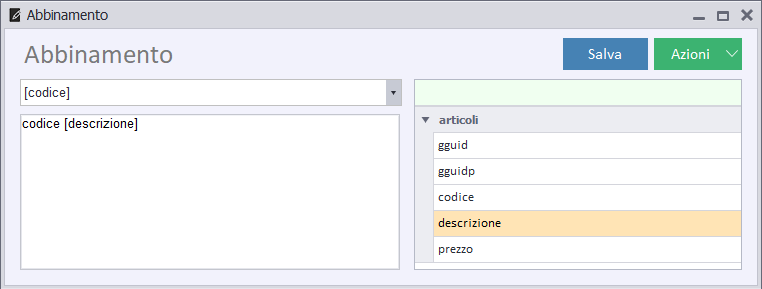
This action performs a mapping using the current fields of the form. Once the destination field is set from the list at the top, you build the string containing the text and the fields from which the values are taken.
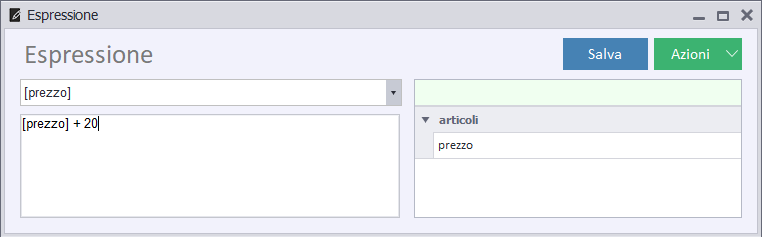
Expression
Sets a mathematical expression to apply to a specific field. As with the mapping, select the destination field and build the expression to calculate.