
The Nios4 program for Windows has a complete editor for creating print layouts on your own. The print layouts you create can also be used in the Android and iOS clients. At this link you can watch all the video tutorials on creating and managing the program’s print layouts (in Italian).
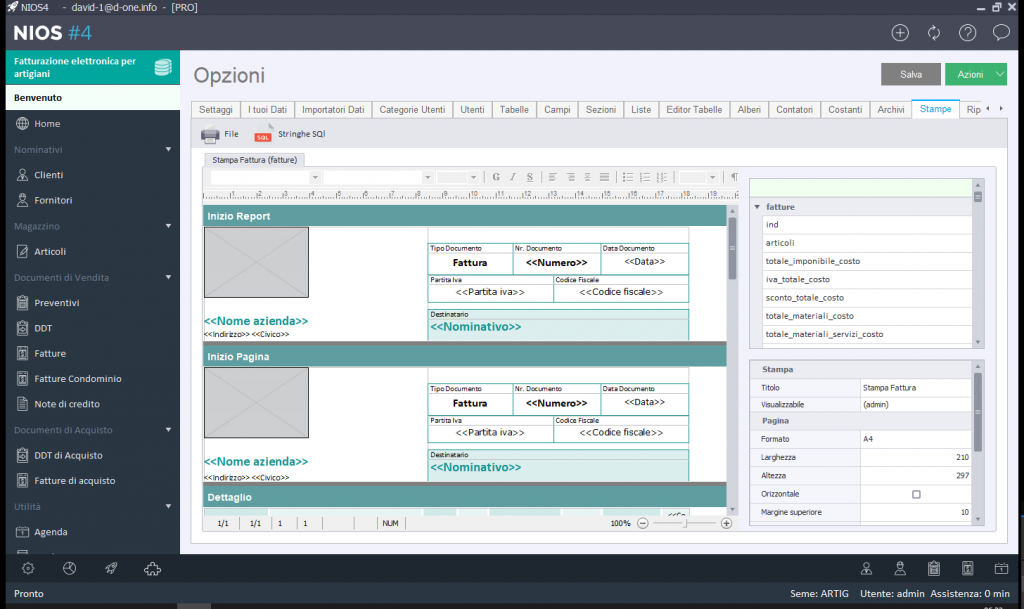
The upper right area lists the fields that can be inserted in the sections of the print layout, and the lower area shows the properties, such as the margins or the paper size.
Print layout sections
The central area is made up of the five sections that make up a print layout. Each section is added to the print during processing, depending on the stage.
Report Header
Everything placed in this part will be displayed at the beginning of each print, that is, on the first page.

Page Header
Everything placed in this part will be displayed at the top of each page of the print, but not on the first one, which shows the content of the report header.

Detail
Everything placed in this part will be displayed in the body of the print: it usually shows the details of all the rows in the documents. We therefore recommend setting up the print layout with columns.

Page Footer
Everything placed in this part will be displayed at the bottom of each page of the print, except the last one, where the report footer block is inserted.

Report Footer
Everything placed in this part will be displayed at the end of the print, that is, on the last page.
Fields panel
The upper right panel contains all the fields that can be inserted in the print layout. The fields are grouped by the table they belong to. The tables are identified by the SQL strings used by the print layout.
Print panel
The lower right panel contains the print parameters, such as the paper size and margins. You can also set the title and the permission categories that can use the print layout.
File menu
The management menu is at the top. The File button contains all the commands for creating, managing and saving print layouts.
SQL strings
The SQL strings define which data is used in the print layout and with which filters.
Basic functions
Managing images and logos in print layouts and queued prints
We recommend that you avoid inserting several image/signature fields in the print template, avoid setting large sizes for these fields and, for queued prints, avoid sending more than 4 images to the print process at the same time.
Indiscriminately inserting a large number of images in the same print document or print process can compromise the correct rendering and display of the file, especially for queued or multi-page prints. For optimal performance, images and logos should be in compressed formats and small sizes, minimizing memory use and processing times.
The Print Editor was designed for advanced optimization of text, calculations and data tables, ensuring high efficiency even when handling multi-page documents.
For print templates containing large images or a large number of images, neither the correct operation of the print system nor compatibility across all devices and operating systems can be guaranteed.