
This section shows data as a calendar, to manage appointments quickly.
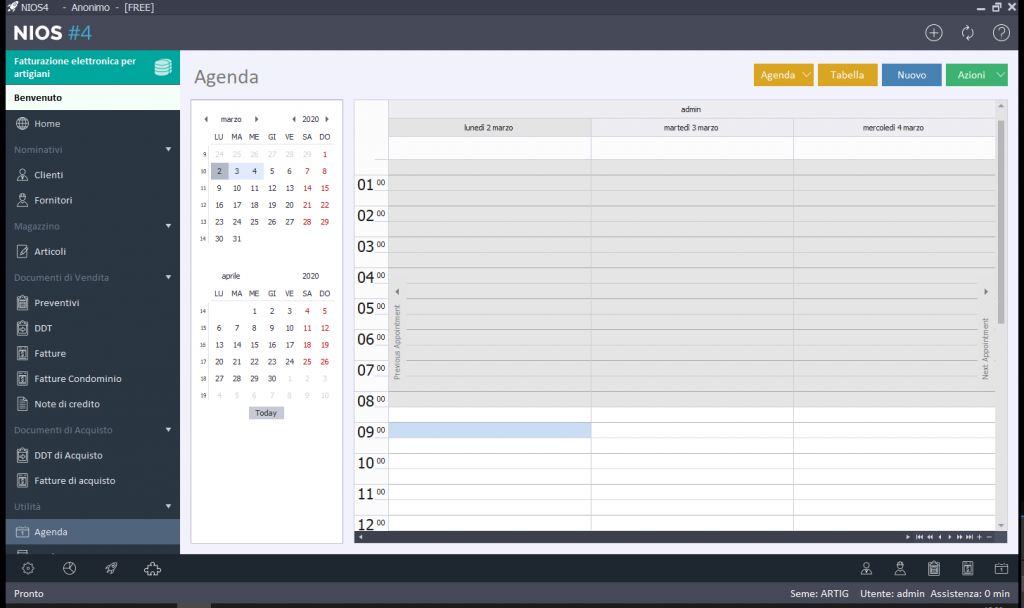
On the left are the calendars for moving between days, and in the middle the data view, which can be set with the Calendar button to daily, weekly, monthly or timeline mode.
You can switch to the grid view by clicking the Table button.
The Actions menu has the same items as the Record section.
Section Parameters
Subtotals
Date Field
Used for the first sum of a field's values.
Total Field
The field to sum.
Total Field Title
The label shown above the sum box.
SQL Filter
An optional SQL string to filter the sum of the values further.

Except for the first box, the other three boxes change according to the filter applied to the grid. All boxes need the field to sum, the title and the optional SQL string.
Parameters
SQL Filter
Filters the values shown in the section. For example "country = 'Italy'" shows only the records matching that criterion.
Tree Choice
If the table has a tree field, you can select it here. The program shows it on the right of the grid so you can filter the data by the selected node.
Group by
You can show the calendars by user or by label. By label means the calendar is split using the values of a list field.
Start Date Field
The field that marks the start of the appointment.
End Date Field
The field that marks the end of the appointment.
Subject Field
The text field used for the title in the appointment box.
Description Field
The text field used for the description in the appointment box.
All-day field
The Check field that marks the appointment as all-day.
Label field
The list field used to mark the status and color of the appointment.
Working hours
Sets the working hours so they are highlighted in the calendar.

All the fields that define the appointment are required, while the others are optional. If one of the required fields isn't set, the section can't be saved.