
Users are the people who actually work with the data in the program’s databases. Each user has a name and a password to sign in.
Depending on the permissions assigned, each user may have restrictions on the actions they can perform on the data. Users can be local or cloud users.
Local users are users who access a database on their own computer or on the internal network. They can also be created on cloud databases so that their login details are synchronized on all devices, but they can only be used on Windows and macOS. On mobile and web devices you must use a D-One account to sign in.
Cloud users are users registered on the D-One website. These users can access all D-One management software, manage cloud databases, and also share their database with other people.
In fact, you can invite other registered users to view and edit the data of a specific database without any direct contact.

For example: Davide wants to give Silvia access to his database. By adding her as a cloud user in the database options, Silvia will find Davide’s database in her list of databases. It’s up to Davide, through permissions, to give her access to all the data or only to certain types of information.
User management
Users are managed from the dedicated page in the Options section.
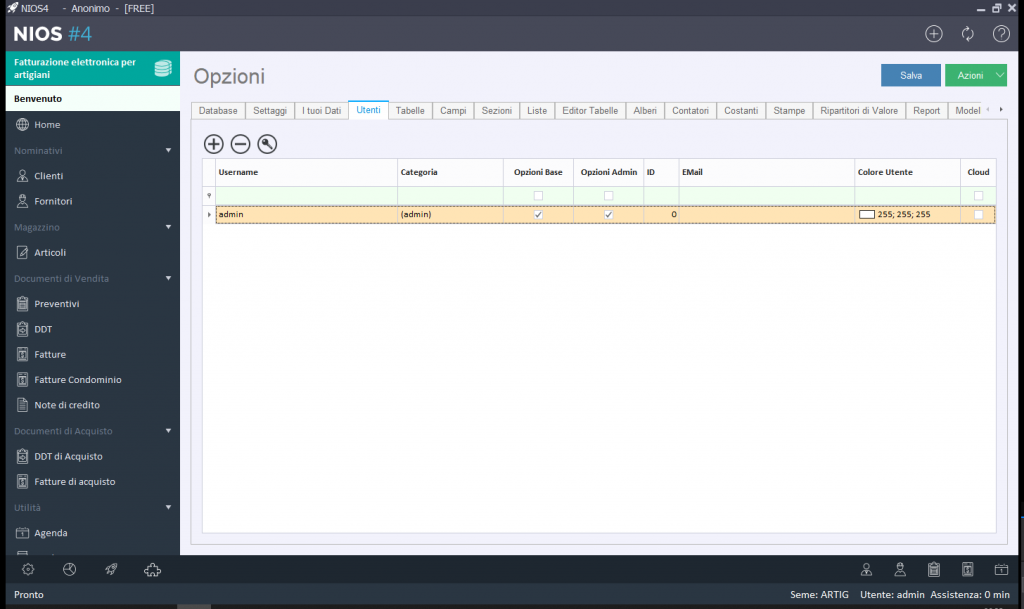
Username
The user's name. It cannot be changed.

Category
The category sets the user's permissions. Each user can belong to several categories.

Basic Options
Lets the user access the data management options.

Admin Options
Lets the user access the options for managing the database structure.

ID
The user's numeric identifier.

Email
The user's email.

User Color
The color associated with the user.

Cloud
If active, the user is a cloud user.
Adding a local user
You can add a local user to both local and cloud databases. This type of user can only be used on Windows devices, because access can only take place on the local network.
To add a user, click Add and enter the new username and password.
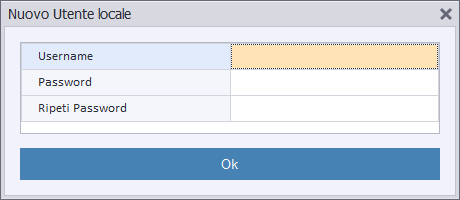
Once the user is created, remember to fill in the missing data in the grid and save.
Adding a cloud user
Cloud users can only be added to a cloud database. Although they could, these users don’t need to access the local network and can use all their devices. In the program, besides their own databases, they will also find the ones they’ve been invited to.
To add a cloud user, click Add and select New cloud user.
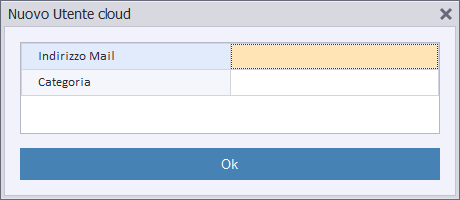
In this case you need to enter the user’s email and select the permission category they will use. An invitation email is sent automatically. If the user doesn’t have a D-One account, the email describes how to create one.
User categories
User categories define which permissions users have.
Besides the standard categories, you can create your own categories to better divide permissions and the types of users to create.
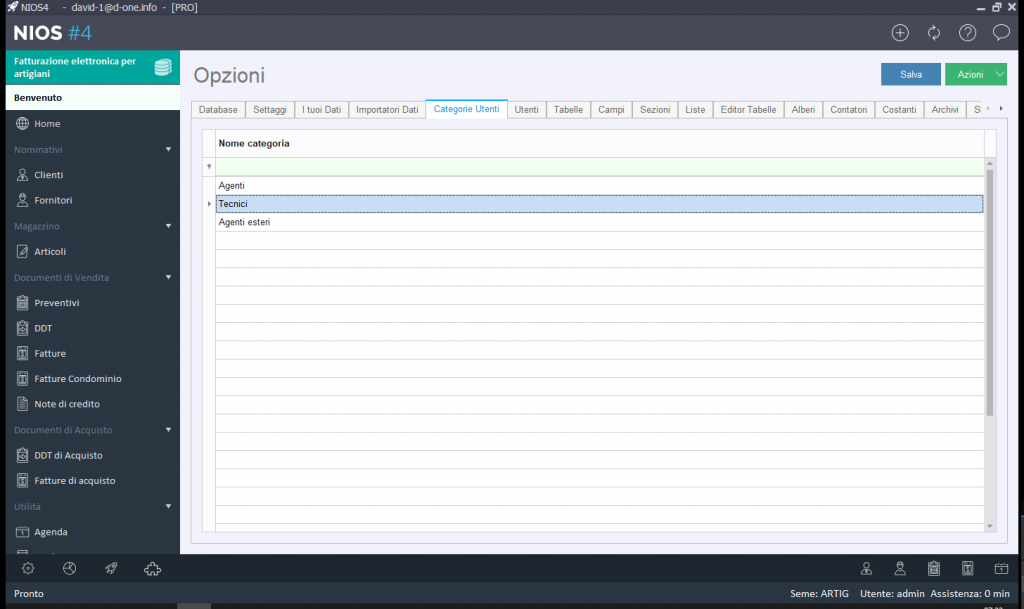
From the dedicated page you can add the categories you want, save them and start applying them to users and permissions.