
Now that we’ve installed and set up the program, we’re ready to create the base of our management software.
Once you’ve logged in, you’ll see a screen like this:
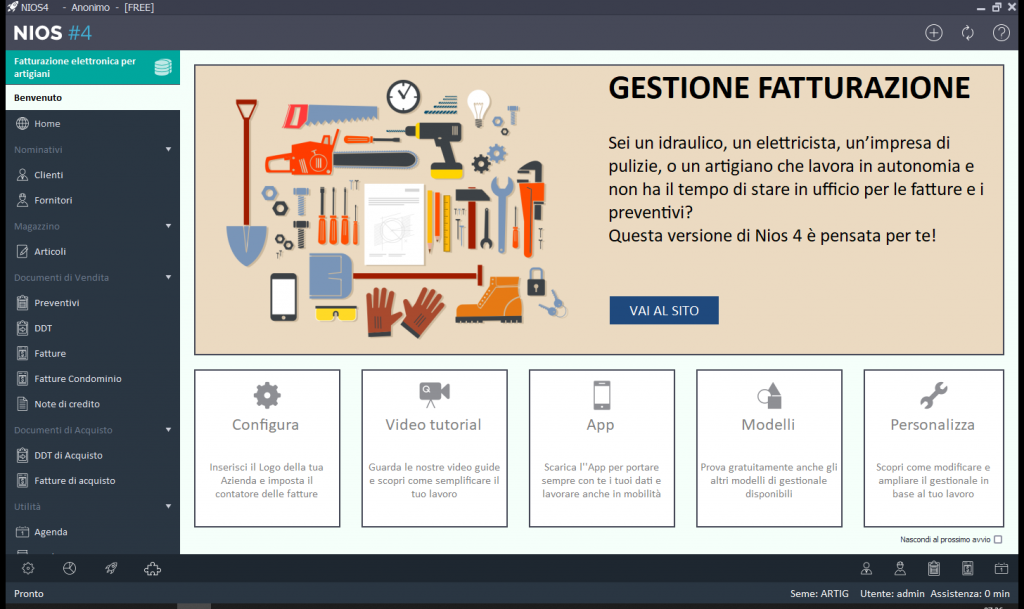
What we’re interested in is the database quick-switch button, on the colored bar in the top left showing the name of the currently open database.
Creating the database
Click the icon and choose New local database.
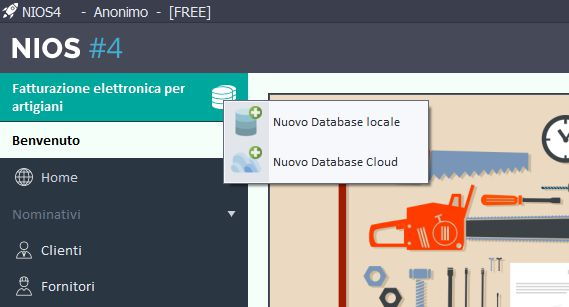
The program shows the first screen, where you can choose to create a new database, link an existing one or manage the connection in advanced mode (for example, to connect an SQL Server database).
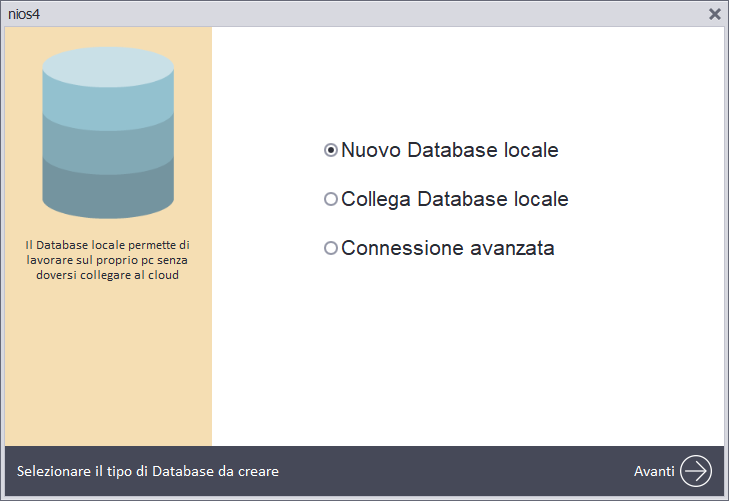
Let’s choose the first option and click Next.
On this screen the program asks which source the new database will be created from.
We want to create an empty database, so we’ll leave the first option selected.
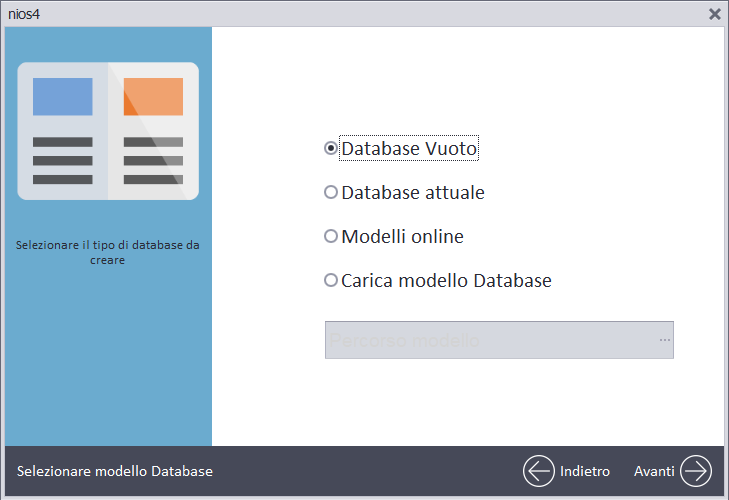
The second option creates an exact copy of the currently open database. This copies both the structure and the data, giving you a copy of the changes made up to that point.
The third option lets you choose from the online templates, as we saw in the previous chapter.
Let’s choose the first option, click Next and enter the name of the new database.
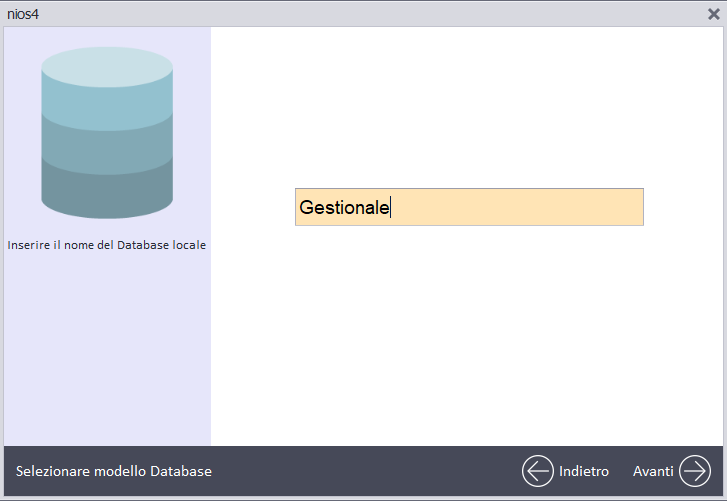
The database name is important because it helps you identify it. If you enter a name that already exists, you won’t be able to continue. For our example, let’s enter “Gestionale” and click Next.
The program asks whether we want to open it. Let’s say yes and enter the username admin and the password admin, the default details the program creates for a new local database.
While the password can be changed, the username must stay admin. This user has full access to all the options and can therefore create and change any part of the database at will. They can also create other local users and give them the same privileges.
With an empty database, the program looks like this:
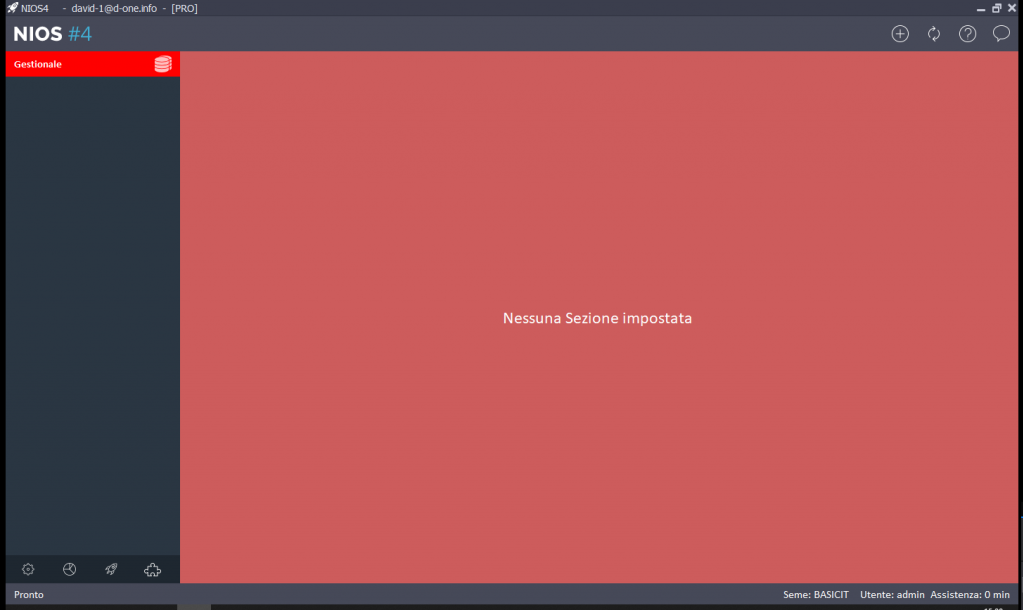
As you can see, all the program’s main buttons are there, but no section can be used. This is because sections are ways of displaying the data in tables and, since there are no tables yet, there can be no sections.
In the bottom right you can also see that the database has a BASICIT seed. This is the seed applied to empty databases, which lets the program determine the cost of the license and of any cloud subscription.
In the next chapter we’ll start building the tables and their sections so we can begin working with the data.