
Each table can have one or more layouts, depending on the device and the user’s permission categories.
The layout defines the look and the arrangement of the fields shown in the form.
Each table has a base layout called “default”. This is the one used on devices that don’t have a specific layout.
Editing a layout
First select the table; the Layouts button then lets you choose the device to edit, or change the default layout. From this menu you can also create a new layout, again first choosing which device it will be used on.
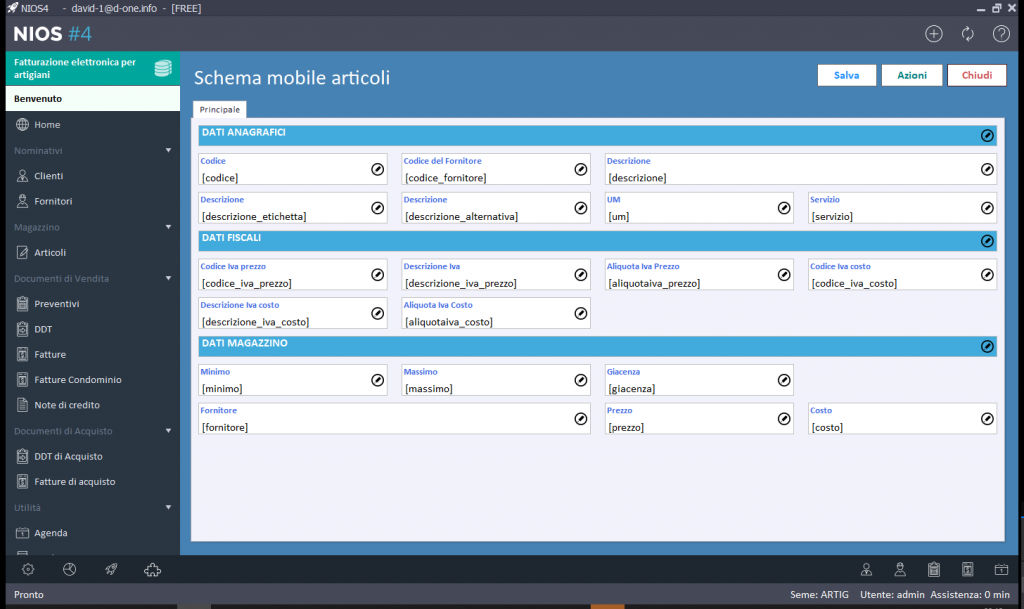
Once the screen is open, make the changes you want through the Actions menu and the field menu, which opens from the pencil icon on each field.
Moving a field
Fields can be moved within the same page.
To move a field to another page, use the dedicated functions.
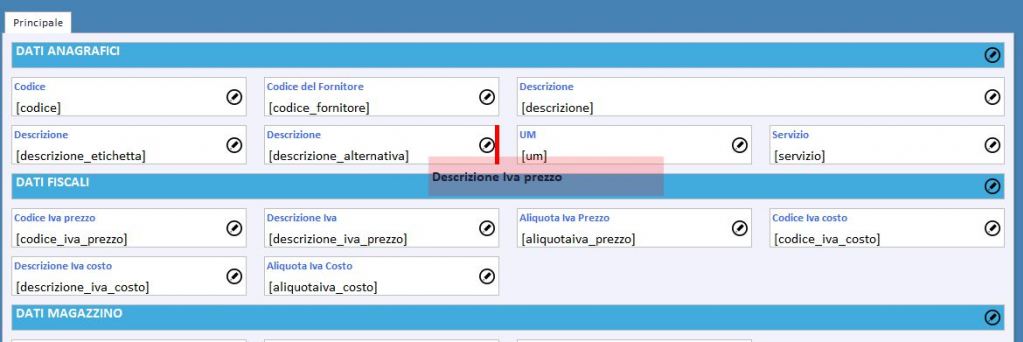
Click the field and, holding the button down, drag it to the box of the field it should go before or after.
As you approach that box, its right or left border is highlighted to show where the field will be placed.
Actions menu
The Actions menu contains the main layout management functions.
You can create a new field or insert an existing one, choosing the page it will be placed on.
All layouts always have a page called Main.
To place the field in another area, select Other and type the name of the page. If the page doesn’t exist, it will be created.
To delete a page, remove all its fields by hiding them or moving them to another area.
If you are editing a layout other than the default one, the Actions menu lets you set its permission category and name.
Field menu
Each field has its own management menu. To open it, go to the field and click the pencil icon.
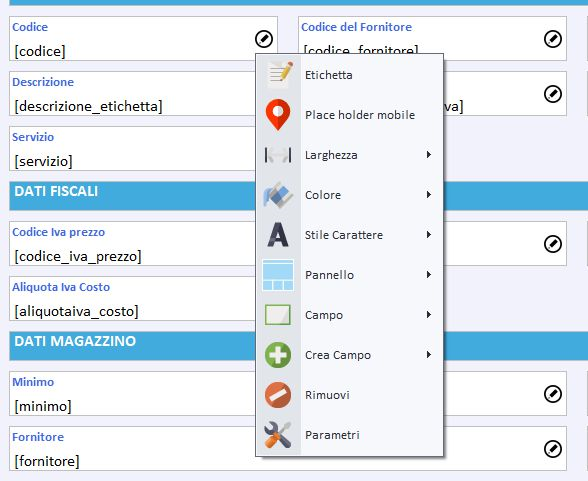
Label
Sets the field label shown in the forms.
Mobile placeholder
The text that tells the user what value to enter. It is shown inside the fields on mobile devices.
Width
Sets the size of the field: full, half or a quarter of the form.
Color
Lists all the elements that can be colored, such as the field background or the label color.
Font style
Sets the style: normal, bold or italic.
Panel
Moves the field from one page to another. If you enter the name of a panel that doesn't exist, it is created automatically. If moving the field leaves the current panel empty, the panel is removed.
Field
Inserts a field before or after the current one.
Create Field
Creates a field before or after the current one.
Remove
Removes the field from the layout.
Parameters
Opens the field parameters screen.