
Fields are the basic unit for entering data. The field type defines the data and the format that can be stored; some types of field can also perform complex operations, such as managing relationships between tables, retrieving information from the internet, and so on.
Two fields with the same name cannot exist in the same table. Remember that once a field is created its macro type cannot be changed: a field defined as text cannot be converted into a number. You can, however, convert a text field into an email field, since both types handle alphanumeric information.
Once created, a field can only be deleted if the database is local.
To manage fields, open the Options section and select the Fields page.
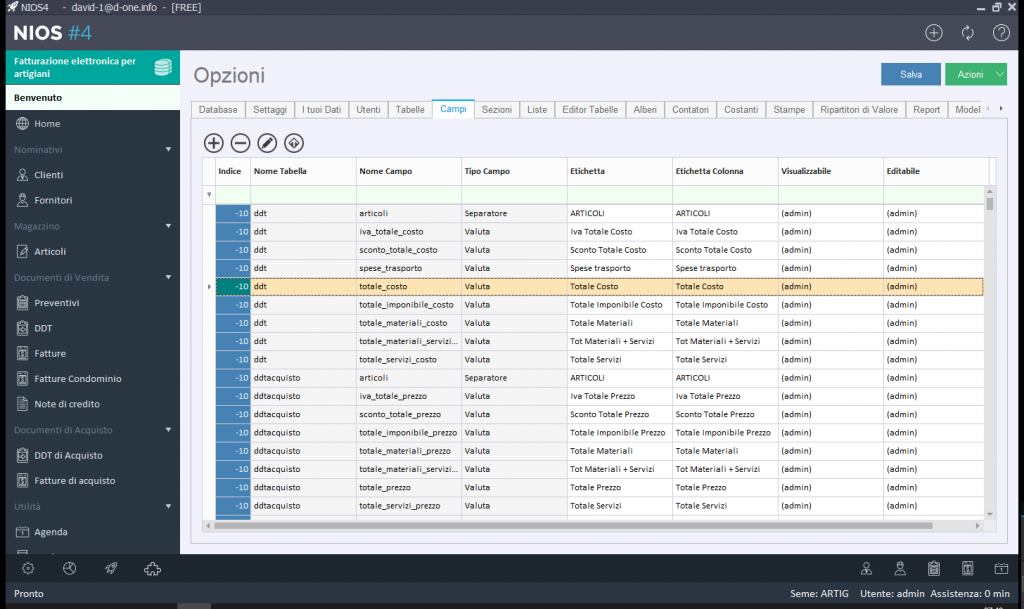
The grid shows the main data of each field and lets you change the label shown in the table’s form or the column label used in the grids. From here you can also quickly change permissions by selecting the user category.
Table Name
The name of the table.
Field Name
The name of the field.
Field Type
The type of the field.
Label
The label shown in the cell.
Column Label
The label used for the column in the data grid.
Viewable
The user categories that can view the field.
Editable
The user categories that can modify the field.
Required
The field must be filled in; otherwise the record cannot be saved.
Adding a new field
To create a new field, click Add: the field management window opens, where you enter the main values for creating it.
The essential values are the table name and the field name. As mentioned, two fields with the same name cannot exist in the same table. To fill in the field name, enter the field label and the program creates the name automatically.
All the other values can be left as they are and changed later, after the field has been created.
Deleting a field
To delete a field, select it in the grid and click Delete. The field is actually deleted only if it isn’t used elsewhere and isn’t classified as a system field.
Exporting a field
You can export a field to install it in another database. When you click Export, the program asks for the file name before proceeding. The package can only be installed in databases with the same seed.
The export carries all the information needed to rebuild the field and make it work. For example, if you export a Subtable field, the table associated with it is exported too.
In this section: Common field parameters · Sensitive data encryption · List fields · Numeric fields · Alphanumeric fields · File fields · Special fields