
All fields have common parameters and specific parameters.
Clicking Parameters, or double-clicking the field in the grid, opens the management window. Remember that the display parameters can be managed directly in the layout editor.
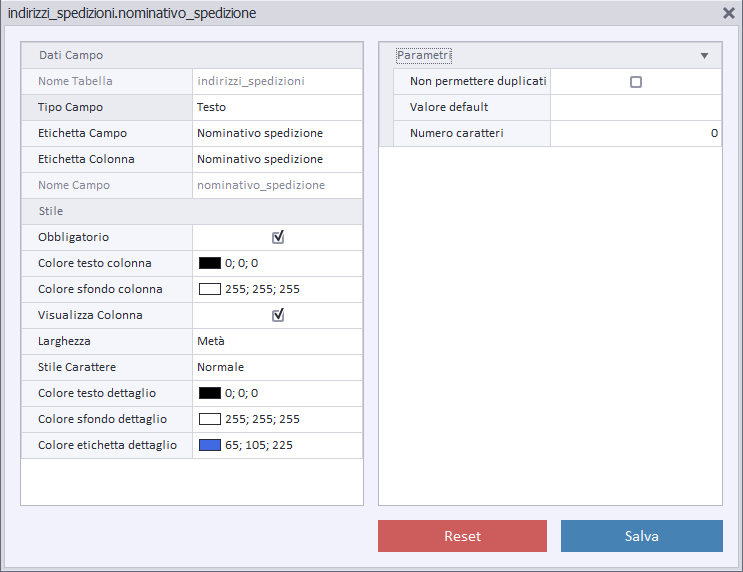
Table Name
The name of the table where the field was created. This value cannot be changed after the field has been created.
Field Type
The field type defines the type of value stored in it. Remember that the type you choose limits the changes you can make later. For example, a text field can be turned into a notes field, because both handle alphanumeric values, but not into a numeric field, because the values belong to different families.
Some fields, which perform automations on the data as well as storing it, cannot change their type.
Numeric field type identifier
None = -1
Text = 0
Note = 1
Image = 2
Percentage = 3
Check = 4
Currency = 5
Color = 6
Date = 18
IntegerNumber = 9
DecimalNumber = 10
Separator = 11
List = 12
Email = 14
GlobalCounter = 15
Subtable = 20
DocumentStatus = 21
Tree = 22
GeographicPosition = 24
Link = 25
Phone = 26
StatusList = 27
File = 28
ValueSplitter = 29
Signature = 30
CheckList = 31
UserList = 32
Button = 33
Field Label
The text shown in the cell in the form. The label doesn’t have to match the field name.
Column Label
The text shown at the top of the column in the data grids. The column label is normally identical to the field label, but you may need to keep them different.
Field Name
The actual name of the field in the database.
This is the name to use in every setting or function of the program so the field can be recognized.
It cannot be changed after creation.
Required
This flag means the field must be filled in, in the form or grid where it appears. If it isn’t, the program blocks saving.
Column text color
Sets the color of the text in the cell in the data grid.
This value isn’t applied on mobile devices.
Column background color
Sets the background color of the cell in the data grid.
This value isn’t applied on mobile devices.
Show column
This flag means the column is shown in the data grid; removing it hides the column.
This option isn’t available on mobile devices.
Width
Defines the width of the field in the form: the cell can be as wide as the form, half or a quarter of it. This value is used by all types of device.
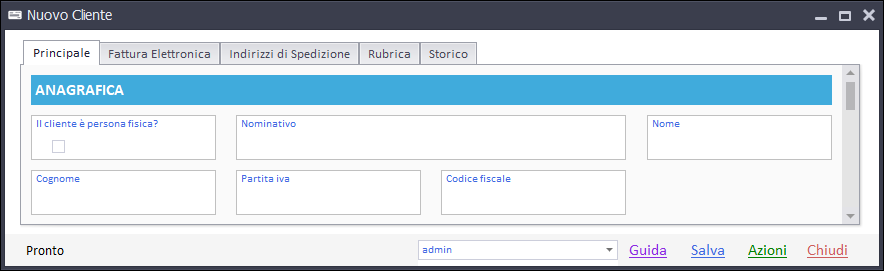
In this example the Anagrafica label is full width.
The Nominativo cell is half width and the Nome cell a quarter.
Detail text color
Sets the color applied to the text entered in the field’s cell in the form.
Detail background color
Sets the color applied to the background of the cell in the form.
Detail label color
Sets the color applied to the text of the field label in the cell of the data form.