
Besides the APIs for exchanging data through HTTP calls, there are several Windows libraries for building applications that use the Nios4 synchronization system. You can also create add-ons that load directly in the Windows version, for example as sections or reports. This way you can build vertical integrations between Nios4 and other applications.
The libraries and projects are compatible with Microsoft Visual Basic .NET and Microsoft Visual C#.
The synchronization library lets you integrate Nios4’s data exchange technology into your own Windows Forms applications. This way you can turn your projects into complete cloud systems, with the data passing through the Nios4 servers. This library is specific to projects developed with Microsoft’s .NET Framework. For projects based on Xamarin or .NET Core you need to use the dedicated library.
Creating the project
In this example we’ll use Visual Studio 2019. Launch the program and create a new project using the “Windows Forms App (.NET Framework)” template for C#.
After downloading the synchronization library from this link, add it as a reference in the project, together with its dependencies, and finally add an empty Access file. The library will use this file as the database where it reads and writes data. Besides Access databases, you can also use SQL Server.
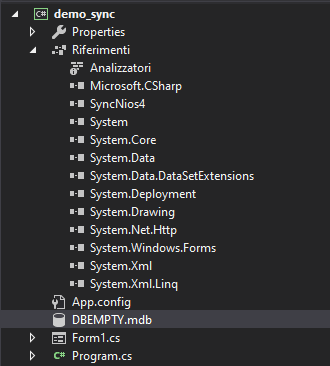
With the basic project created, let’s add the code to synchronize the data. In this example the synchronization runs when the Form1 object is created.
using System;
using System.Windows.Forms;
using System.Data.OleDb;
using SyncNios4;


namespace demo_sync
{
    public partial class Form1 : Form
    {
        public OleDbConnection dbconnection = new OleDbConnection();


        public Form1()
        {
            InitializeComponent();


            dbconnection.ConnectionString = "Provider=Microsoft.Jet.OLEDB.4.0;Data Source=" + AppDomain.CurrentDomain.BaseDirectory + "\\DBEMPTY.mdb;Persist Security Info=False";
            dbconnection.Open();


            SyncNios4.CSyncNios4 N4 = new CSyncNios4();


            Double tid = 0;


            if (!N4.Synchronize("username", "password", "dbname", dbconnection, ref tid))
            {
                Console.Write(N4.ErrorN.ErrorMessage);
            }


        }
    }
}
First we create the OleDb object for the connection to the database that the synchronizer will use.
Once the connection and the synchronizer object itself have been created, we run the synchronization command. The parameters to pass are:
username and password
The login details of our Nios4 account.

dbname
The name of the cloud database to connect to. This name is not the same as the database label. You can find the value on any device.

dbconnection
The open connection to the database used by the synchronization library.

tid
The time reference value for synchronization: a double value the server uses to know from when to start sending data. The number must be in YYYYMMDDhhmmss format. Passing 0 requests all the data in the cloud database. Even if all the data is received, the library checks the data already present locally and applies only the actual changes received.
After synchronization, the method returns the updated tid with the reference date to use for the next synchronizations, so that only the latest changes are received. If there is an error, you can read the message through the library’s ErrorN object.
Sending data
The library selects the data to send based on the value of each record’s tid field. This field is present in all the standard tables of the database. To change this value you can use the N4.UT.NTID() function, which returns the current time in the UTC time zone, already formatted. Once the record has been updated with this value, the library will send it to the server at the next synchronization.